Members and Roles
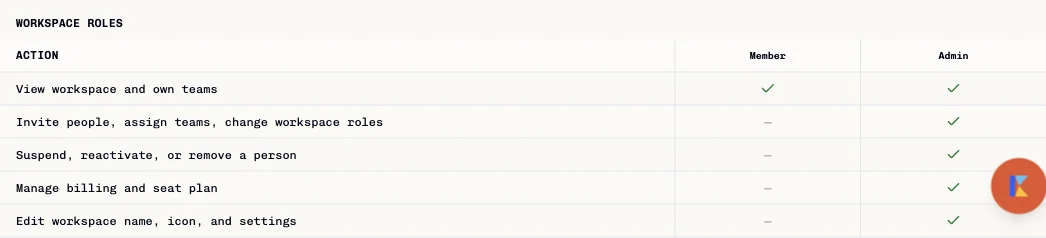
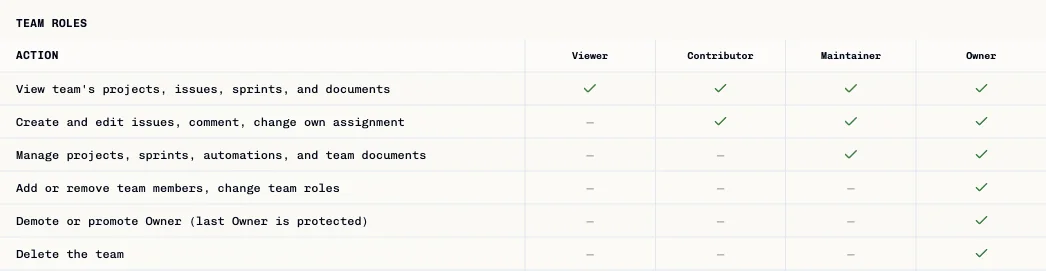
Workspace roles govern workspace administration. Team roles govern work inside one team. Admin → Permissions shows the current role reference.
Workspace roles
| UI role | Current reference summary |
|---|---|
| Member | View the workspace and the teams the member belongs to. |
| Admin | Invite people, assign teams, change workspace roles, suspend/reactivate/remove people, manage billing, and edit workspace settings. |
The permissions reference says workspace creators are treated as Owners internally while the UI represents that access as Admin. Existing People & Access records can display Owner. Superadmin is a platform-level role shown in the separate Superadmin area; it is not a workspace invite role.
Team roles
| Team role | Current reference summary |
|---|---|
| Viewer | View team projects, issues, sprints, and documents. |
| Contributor | Create and edit issues, comment, and change own assignment. |
| Maintainer | Contributor capabilities plus managing projects, sprints, automations, and team documents. |
| Owner | Maintainer capabilities plus managing team membership and roles, promoting/demoting owners, and deleting the team. The last Owner is protected. |
Project access within a team is a separate binary grant (access or no access); it is not another team role.
Add someone to a workspace and team
- Open Admin → People & Access.
- Select Add person.
- Enter the email and optional profile details.
- Choose the workspace role: Member or Admin.
- Enable each required team and choose a team role.
- Review the invite and seat details before selecting Send invite.
The invitation sends a magic-link email. Do not select Send invite until the recipient and access are correct.
Add an existing workspace member to a team
- Open the team and select Members.
- Select Add to team.
- Choose an existing workspace member or the team's AI.Agent.
- Choose a team role and select Add member.
The current dialog says this action does not send an invite email or use an additional paid seat. Adding a team membership changes access immediately.
Review or change access
- Open Admin → Permissions to compare workspace and team role capabilities.
- Use the People & Access list to review workspace status and role.
- Use the team's Members page for team membership and team role.
- Change a role only after confirming the scope: workspace or team.
The Permissions page also contains an interactive role matrix. Clicking a cell can reassign access; use the static Show permission tables reference to inspect definitions without editing assignments.
API role values
The MCP/API guide names workspace values owner, admin, member, viewer and team values viewer, contributor, maintainer, owner. These are API fields. Do not assume each API value maps one-to-one to a role offered by the current workspace invite dialog. The current UI offers Admin/Member for workspace invites and Contributor/Maintainer/Viewer/Owner for team membership.
API keys cannot manage invitations, memberships, or roles. Use a browser session with the required access. See Setup and Access and MCP Usage.