Organizing Documents with Folders
Use folders within your team's Documents page to group and move documents.
Verified on the development environment on 24 September 2026. Screenshots use the sample folder Documentation examples.
Create a folder
- Open your team's Documents page.
- Select All files.
- Click Folder in the top toolbar.
- Enter a Folder Name and click Create.
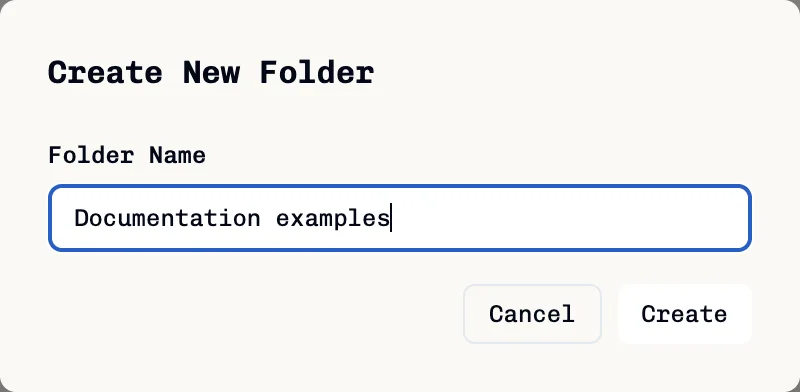
The folder appears in the Folders section. Click its card to open it. Use the folder breadcrumb to return to its parent or All files.
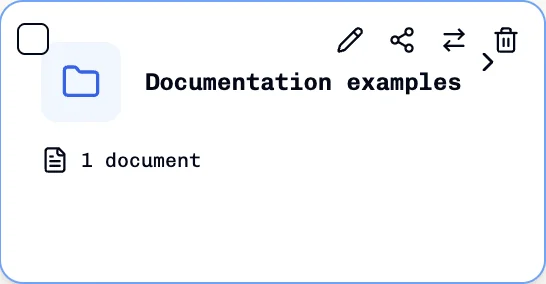
Hover over a folder card to reveal its controls. From left to right, the upper-right icons are Rename, Share, Move to..., and Delete folder.
Move a document into a folder
- Find the document in All files or its current folder.
- Hover over its card and click Move to.... In the document reader, use More actions → Move instead.
- Choose the destination in Move Document.
- Click Move.
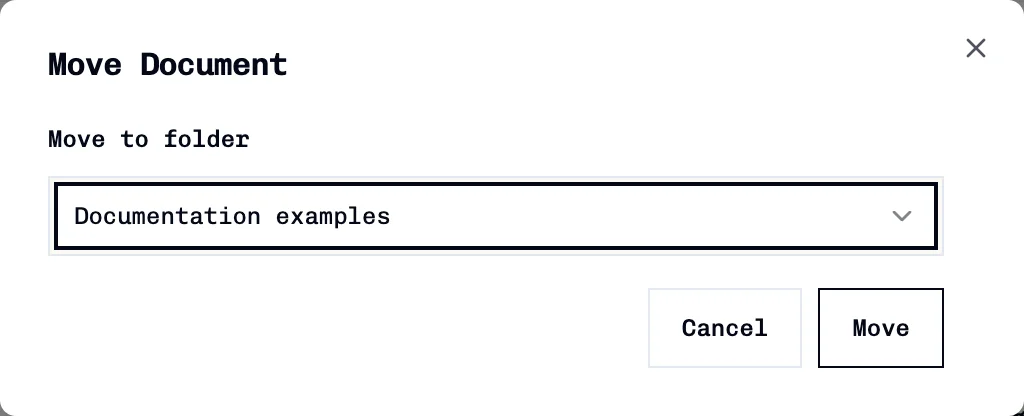
Open the destination folder and confirm that the document appears there. When creating a new document, you can select the destination directly from its Folder dropdown.
Share a folder
- Hover over the folder card and click Share.
- Search for an existing team member using Add names or emails....
- Select the matching person to submit an access grant immediately. This sends a notification; there is no separate Save button.
- Use the member's role dropdown or Remove access to update the explicit grant.
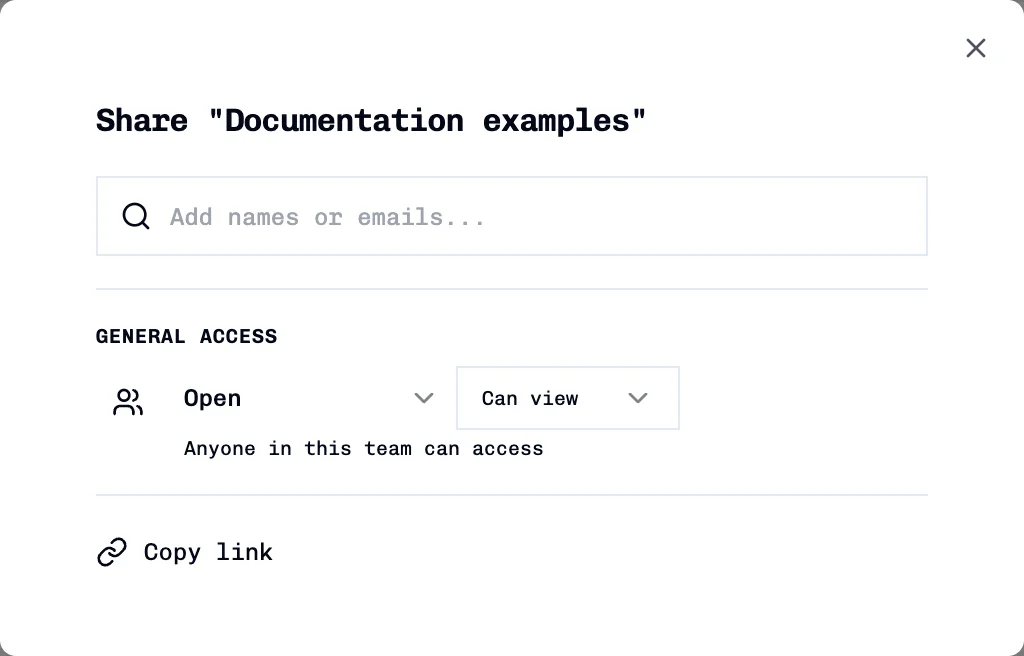
Folder sharing uses the same controls and limitations as document sharing. In particular, the General access role dropdown does not persist, the displayed visibility may not reflect saved visibility, and complete access enforcement has not been verified. Do not use these settings as a confidentiality boundary.
Copy link copies the current browser URL. When sharing from All files, it may copy the list URL instead of a direct folder link. Check the copied URL before sending it.
Delete a folder
- Open the folder and move out any documents you need to retain.
- Return to its parent or All files.
- Hover over the folder card and click Delete folder.
- Check the folder name and warning in Delete Folder.
- Click Cancel to keep the folder, or Delete to confirm permanent deletion.
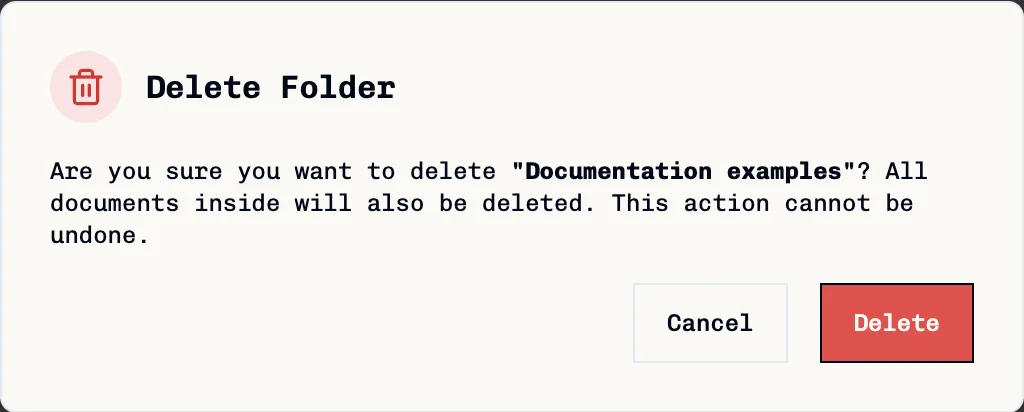
The confirmation warns that documents inside the folder will also be deleted and that the operation cannot be undone. It does not offer a Move to parent option. Move required documents out before deleting.
Only the confirmation was inspected for this guide; the sample folder was retained. To remove a document reversibly, use Archive and Restore.