Creating Tasks
Tasks are labelled Issues in the team interface. This guide covers the team issue form, required values, saved issue page, and editing controls.
Verified on the development environment on 24 September 2026. Screenshots use a documentation sample. You need access to a writable workspace, a team, a project in that team, and an available Feature.
1. Open the creation form
- Open your team's Issues page from the sidebar.
- Click New Issue.
- Check the team name at the top of the form.
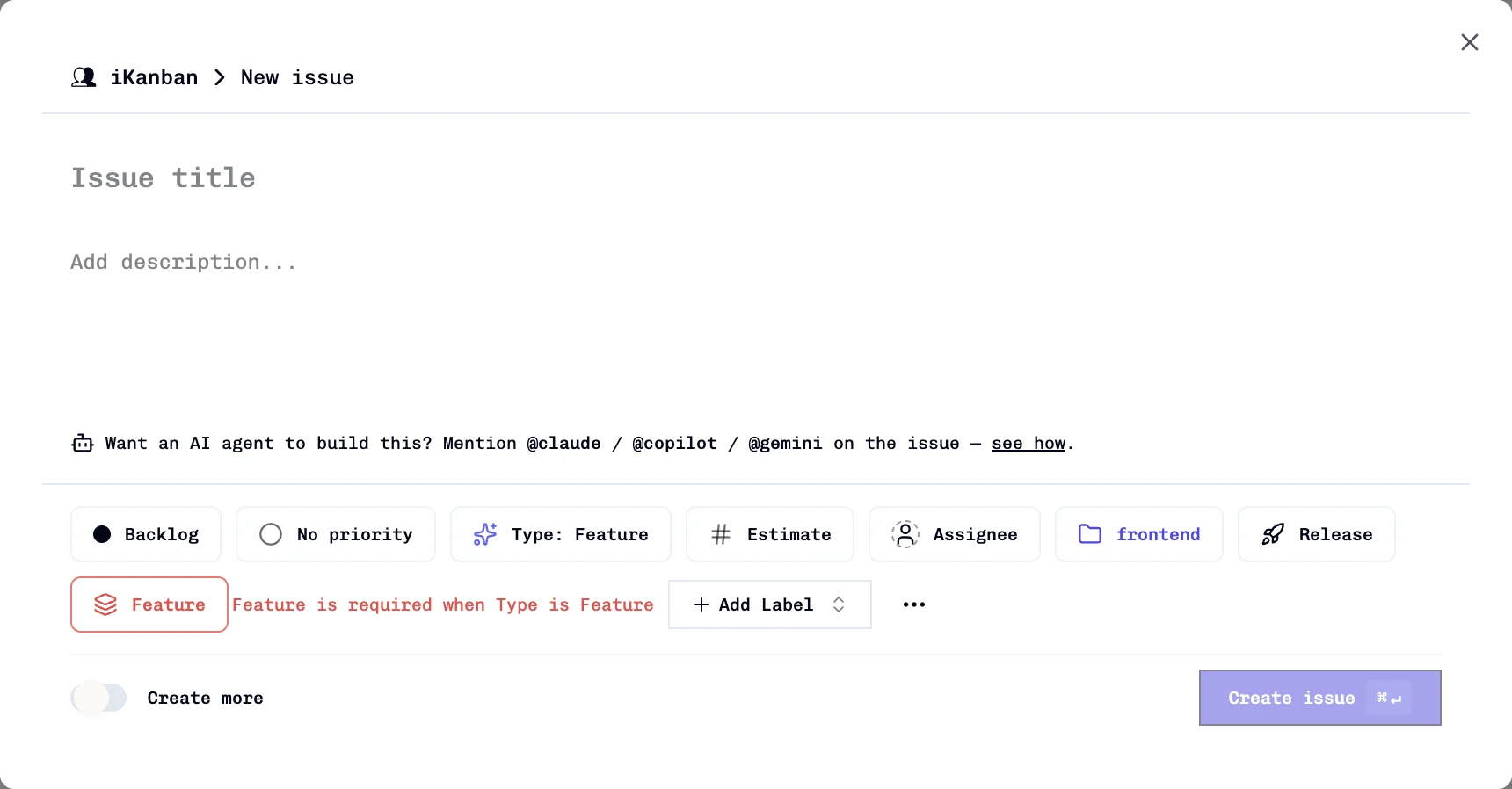
2. Enter title, description, and project
- Enter a non-empty Issue title.
- Fill Add description... with the requirements and acceptance criteria. Markdown is supported; the description is optional in this form, but supplying it gives the task its working context.
- Click the folder-icon project chip and choose the intended project. It may already show the first available project; do not assume that default is correct.
Project is required and must belong to the selected team. If the picker has no projects, have a team maintainer create one before continuing.
3. Set priority, type, and estimate
- Click No priority and choose Urgent, High, Medium, or Low. There is no preselected Medium priority.
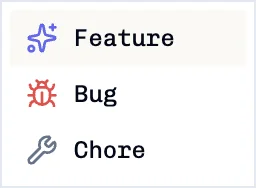
- Click Type: Feature and choose the kind of work: Feature, Bug, or Chore.
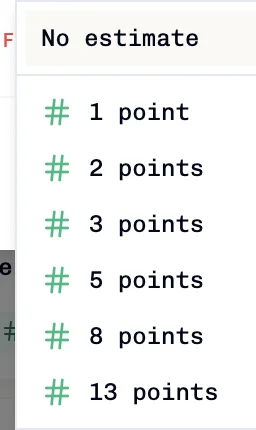
- Click Estimate and select the story points. Available values are 1, 2, 3, 5, 8, and 13. No estimate does not satisfy creation requirements.
4. Select the Feature and review
- Open the separate Feature chip, identified by the stacked-layers icon.
- Select the product area the issue belongs to. The picker displays your team's Feature paths; the example selects
documents. - Review the status and optional fields before creating.
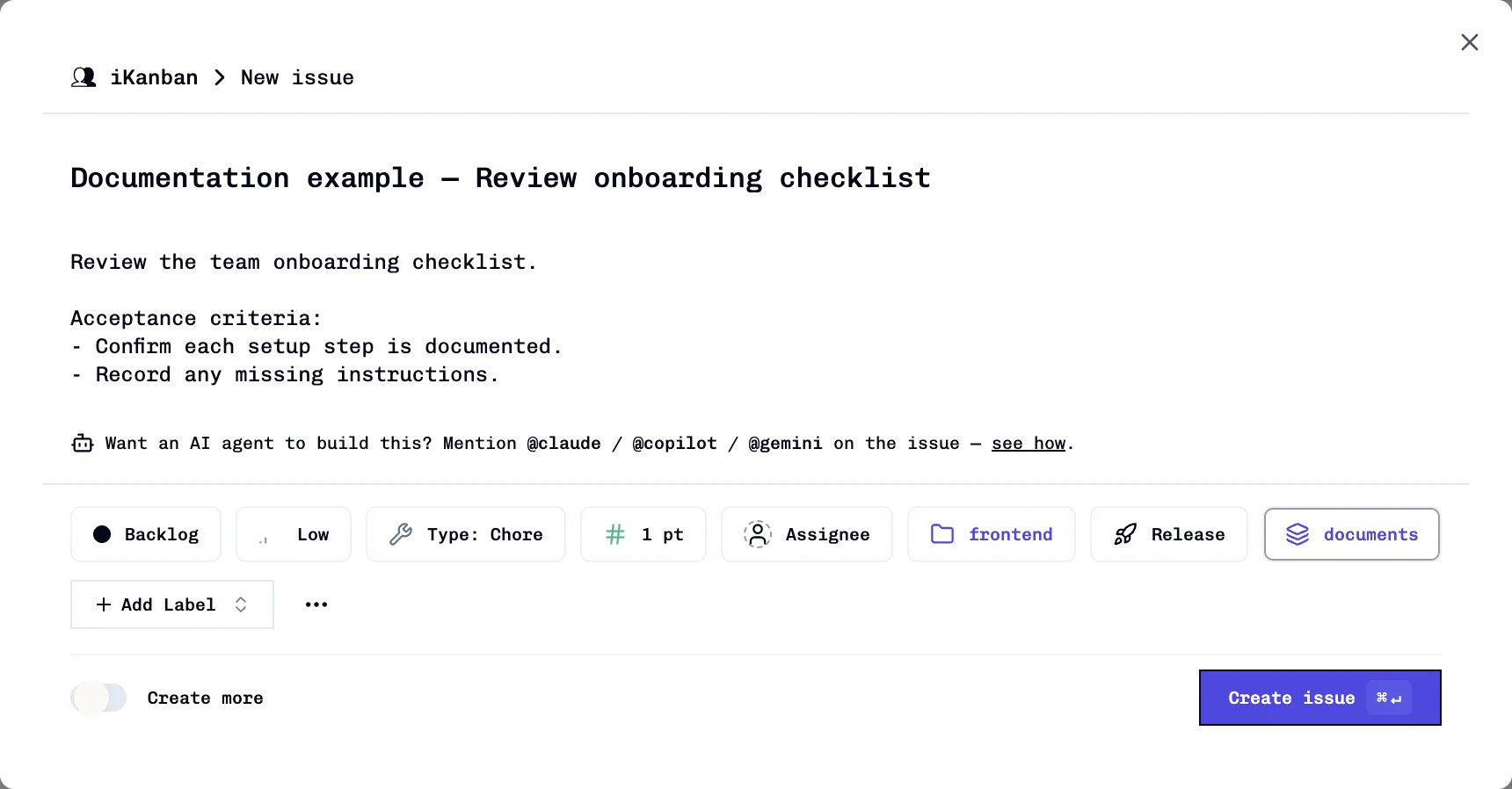
Feature association is required for Feature, Bug, and Chore tasks. The current hint says “Feature is required when Type is Feature,” but the requirement applies to all three. No feature clears the selection. If there are no entries, the picker directs you to Feature Matrix; ask a team maintainer to add the relevant Feature.
To create or organize features and review their task coverage, see Feature Matrix and Lineage.
| Field | Initial value / behavior |
|---|---|
| Title | Empty; required. |
| Description | Empty; optional in this form. Add the complete working context before creating. |
| Project | May be preselected; required. |
| Priority | No priority; choose a value. |
| Type | Feature; change to Bug or Chore as appropriate. |
| Estimate | Unset; choose story points. |
| Feature | Unset; required for every type. |
| Status | Backlog. Other choices: In Progress, In Review, Done, Cancelled. |
| Assignee | Unset in the form; omission defaults the saved issue to the team's AI member. Choose a team member explicitly for human ownership. |
| Release | Optional selection from the releases offered for the project/team. |
| Label | Optional; use Add Label. |
| Due date | Optional; open the … menu and choose Set due date. |
5. Create and verify
- Leave Create more off to close the form after creation, or enable it to enter another issue afterward.
- Click Create issue.
- Wait for the success confirmation, then click View issue. Alternatively, open the new issue from the team's Issues page.
- Check the title, description, and Properties, then reload to confirm the saved state.
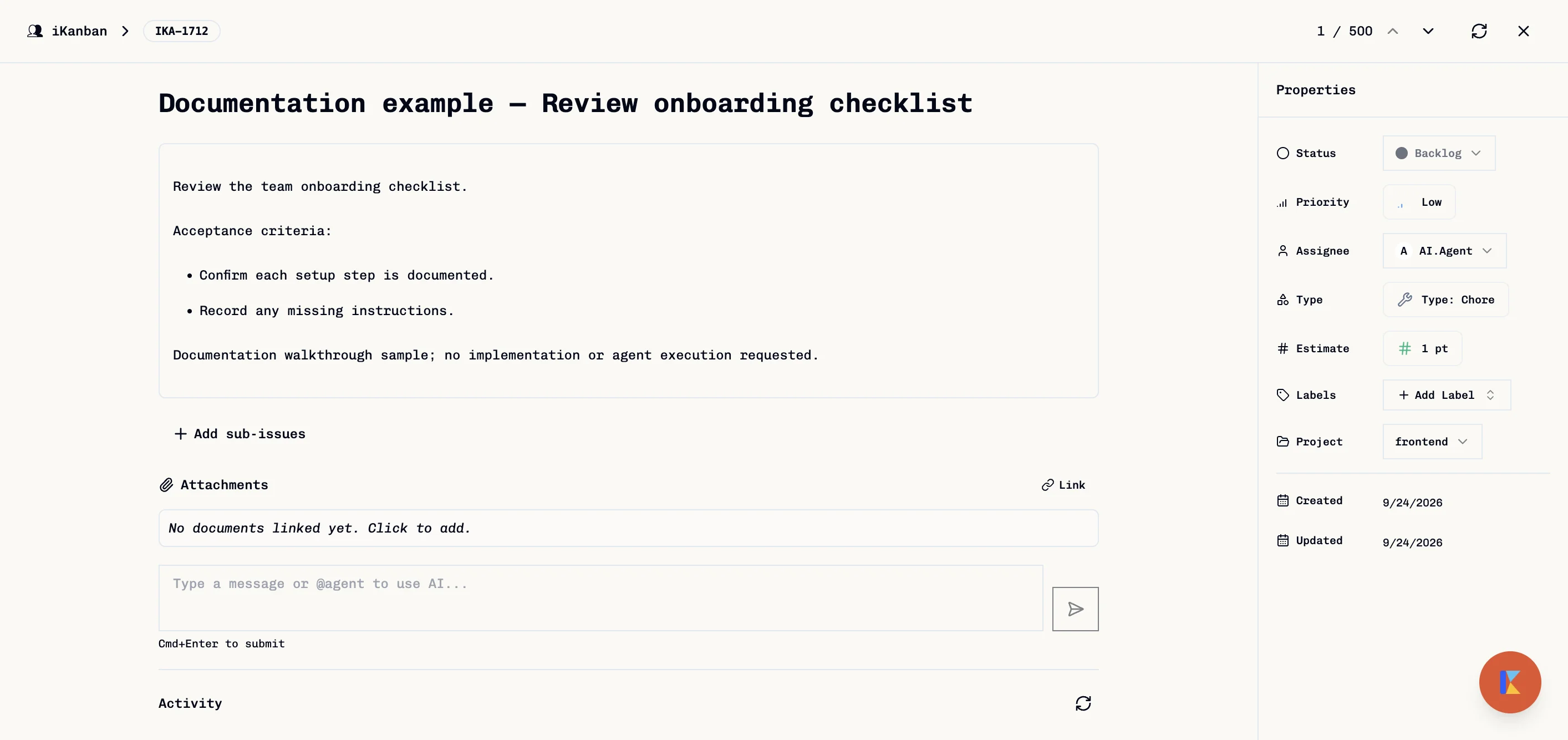
The identifier combines the team prefix and a number, for example ENG-42. Copy the URL from the open issue page; the route is /teams/<team>/issues/<issue-key>, not /tasks/<issue-key>.
Create more keeps the form open for another issue; it is not a draft mode. Required values such as priority, estimate, and Feature must be selected again. Closing an unsubmitted form does not create a saved draft.
Change issue status
- Open the saved issue.
- In Properties, click Status and choose the new value. On narrow screens, open the Properties panel first.
- Reload to check that the change persisted.
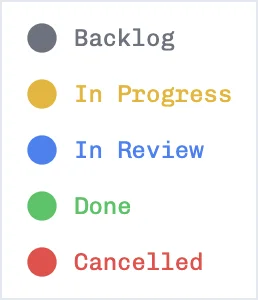
Status saves when selected. The creation/detail label Backlog corresponds to the todo state; some board views label that column To Do.
Edit a description
- Open the issue and click its description.
- Edit the text in the editor.
- Cancel discards the pending edits. Save attempts to submit them; it is not autosave.

Current dev limitation: the Save request for the sample issue returned HTTP 404, and the original description remained after reload. Keep a copy of edited text and reload to verify any attempted save. The editor closing is not proof that the text was saved. Description persistence needs an application fix; it was not changed as part of this documentation update.
Comments and mentions
Use the message box below the issue to compose a comment. For a person, type $ and select from Team member suggestions. @ is used for agent commands on this surface; it is not the person-mention prefix.
Read Coding Agents before submitting an agent command. The member suggestion picker was checked without posting a comment or testing notification delivery.
Troubleshooting
| Symptom | Action |
|---|---|
| Create remains disabled | Check title, project, priority, estimate, and the separate Feature selection. |
| Bug or Chore still requires a Feature | Select the product area; task type and Feature association are different fields. |
| The wrong project is selected | Change the preselected project chip before creating. |
| A new issue is assigned to AI.Agent | No explicit assignee was supplied. Select a person if required. |
| The new issue is missing from the current view | Use View issue in the confirmation, or check the team's view and filters. |
| Description edits disappear | Keep a copy; the dev Save failure described above was reproduced. |
For a shorter walkthrough, see Quick Start.