In-app AI chat
Use the iKanban Agent panel for a conversation with an AI provider. This is separate from assigning a coding agent to a task and from connecting an external client over MCP.
Start a chat
- Select iKanban Agent in the lower-right corner.
- Open the provider menu and choose Claude, Gemini, GPT, GitHub Models, or Support.
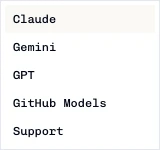
- For Claude, Gemini, GPT, and GitHub Models, choose a model from the model menu or leave Default model selected. The available models come from the current provider catalog; this guide does not pin model versions.
- Enter a question in the chat input and send it. Use New chat to start a separate conversation or Chat history to reopen a previous session.
Support switches the panel to the support conversation. It is not an LLM provider and does not have a model picker.
Provider access
- Manage workspace provider keys in Settings → AI Provider Keys. Only add keys that your workspace is authorized to use.
- GitHub Models uses the signed-in user's connected GitHub account; it does not use a pasted vendor API key.
- Model availability depends on the selected provider and the models configured in iKanban. Use Default model when you do not need to select a specific catalog entry.
The chat panel stores sessions and messages for the active workspace. Do not put secrets or credentials into prompts.
Choose the right workflow
| Need | Use |
|---|---|
| Ask a conversational question in iKanban | This panel |
| Ask an agent to change code for a task | Coding Agents |
| Let an external AI client read or update iKanban through tools | MCP Usage |
Choosing a provider here does not start a task coding-agent run. Task comments use their own agent mention and dispatch flow.