Managing Projects
Projects group issues inside a team. Use the team Projects page to select a project, then its detail tabs to inspect the work.
Open a project
- Expand your team in the sidebar.
- Select Projects.
- Select the Projects tab if another planning tab is active.
- Click the project name to open it.
The breadcrumb identifies the team and project. Click the team name in that breadcrumb to return to the team Projects page.
Create a project
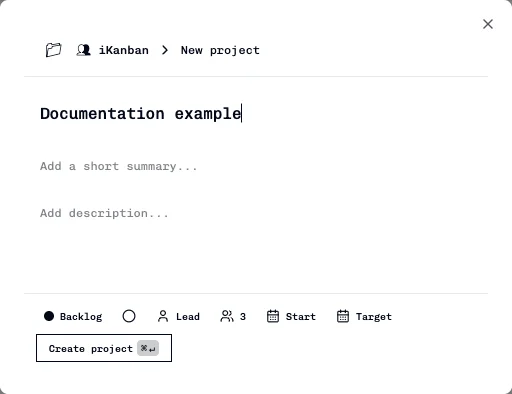
- Open Team → Projects and select the Projects tab.
- Click New project.
- Enter a project name; add a summary or description if needed.
- Set the status, priority, lead, members, and dates as required.
- Click Create project.
Distinguish the two tab rows
| Screen | Tabs |
|---|---|
| Team → Projects | Projects, Launch Readiness, Releases, Release Analysis; Feature Matrix and Feature Lineage when available to the workspace. |
| An individual project | Dashboard, List, Calendar, Automations. |


Use the team's sidebar entries for Sprints and Insights. For a task Timeline, open the team's Views page and select Timeline from Display.
For feature coverage and code artifacts, see Feature Matrix and Lineage. For team or project delivery tracking, see Releases, Release Analysis, and Feeding Launch Readiness.
Review the Dashboard
- Open the project.
- Select Dashboard.
- Review its epic/story grouping and issue summaries.
- Click an issue to open its detail page.
The detail page's issue collection is restricted to the selected project.
Use the List
- Select List.
- Click ID, Title, Status, Priority, Assignee, or Due Date to sort.
- Click the same heading again to reverse the direction.
- Click a row to open its issue.


Tags are displayed but that header is not a sort control. This table does not expose a Created-date column.
Use the Calendar
- Select Calendar.
- Use the previous/next month arrows, or Today to return to the current month.
- Click an issue on its due date to open it.

Issues without a due date do not appear in the calendar. If an issue is visible in List but absent from Calendar, check its due date and the displayed month.
Open Automations
- Select Automations inside the project.
- Follow Automations for rule configuration.
The tab is project-scoped. Opening it does not itself create or enable a rule.
Export CSV
- Open the intended project.
- Click CSV beside the project tabs.
- Check the downloaded file before using it in a report.
The columns are Identifier, Title, Status, Priority, Assignee, Due Date, Created, and Tags. The filename uses the sanitized project name and date: <project>-issues-YYYY-MM-DD.csv.
Export uses the project issues currently loaded by the page. Do not assume it is a complete archive of a large project; the underlying team dashboard response is paginated. The button is disabled when no project issues are loaded.
Troubleshooting
| Symptom | Action |
|---|---|
| Sprints or Insights is missing from the project tabs | Open that screen from the team sidebar. |
| Timeline is missing | Use Team → Views → Display → Timeline. |
| Feature Matrix or Feature Lineage is missing | Check the team Projects screen and workspace feature availability. |
| Project not found | Return to Team → Projects and reopen the project from the list. |
| An issue is absent from Calendar | Check its due date and current month; compare with List. |
| A CSV contains fewer issues than expected | Compare against the loaded project list; it is not an unbounded export. |
See Creating Tasks to add an issue to a project, and Task Views and Filters for team-level filtering.