Introduction to iKanban
Use a workspace to organize teams, a team to organize projects and issues, and a project to group related work.
Choose the correct navigation level
| Level | Purpose | Entry point |
|---|---|---|
| Workspace | Contains teams and workspace configuration | Workspace selector and Settings |
| Team | Issues, projects, documents, sprints, insights, and custom views | Expand a team in the sidebar |
| Project | Related issues with Dashboard, List, Calendar, and Automations | Team → Projects → project name |
| Issue | A unit of work with a title, description, status, priority, type, estimate, and Feature association | Team → Issues → issue |
Open team work
- Expand the sidebar and your team.
- Select Issues to work with the team's issue board or list.
- Select Projects to browse projects and the team's planning tabs.
- Select Sprints, Insights, or Views directly under the team when you need those screens.
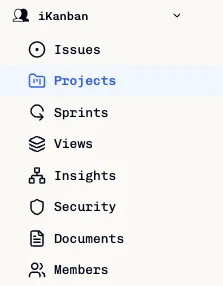
Sprints are team-level work cycles. They are not a tab inside an individual project. The team's Views page provides List, Board, and Timeline layouts.
Open a project
- Select Projects under your team.
- Open a project from the Projects list.
- Choose one of its four tabs.

| Project tab | Use |
|---|---|
| Dashboard | Review issues grouped into epics/stories and progress summaries. |
| List | Review project issues in a sortable table. |
| Calendar | Find issues by due date. |
| Automations | Configure the project's automation rules. |
The team Projects page has a different tab row: Projects, Launch Readiness, Releases, Release Analysis, and, when available to the workspace, Feature Matrix and Feature Lineage. These are team planning screens, not additional project-detail tabs.
Create and track an issue
- Open the team's Issues page and click New Issue.
- Enter the title and working context; select the project, priority, type, estimate, and Feature.
- Create the issue and open its saved page.
Follow Quick Start for the screenshot walkthrough. Type: Feature describes a kind of work; the separate Feature field identifies the product area.
The creation/detail status choices are Backlog, In Progress, In Review, Done, and Cancelled. Some board surfaces label the underlying Backlog state To Do.
Documents and agents
Open the team's Documents page for its knowledge base. Use Creating Documents for explicit save, sharing, archive, and restore steps.
External AI clients use the MCP integration; the browser also has separate agent interfaces. Start with MCP Usage or Coding Agents for the relevant workflow.