Creating and Managing Documents
Create and edit Markdown documents from your team's Documents page.
Verified on the development environment on 24 September 2026. Screenshots use sample documents.
Create a document
- Open your team and select Documents.
- Click Document in the top toolbar.
- Select Blank page or a template: Meeting Notes, Decision Record, RFC, Retrospective, or Runbook.
- Enter a Title. Optionally select a Folder and Parent page.
- Click Create.
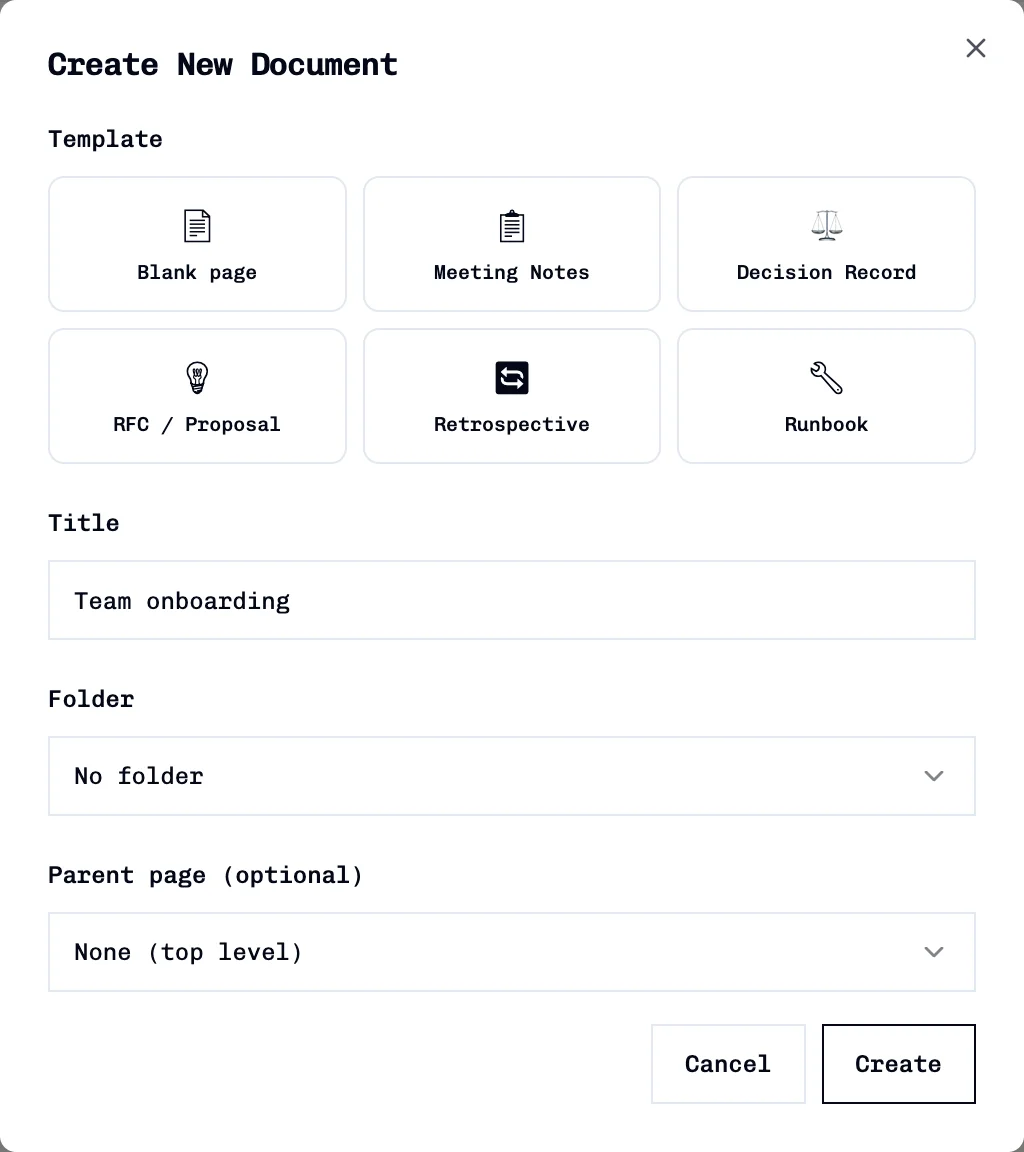
The document is added to the team. If the previous document remains open, select All files, open the chosen folder if applicable, and click the new document's title.
Edit and save
- Open the document.
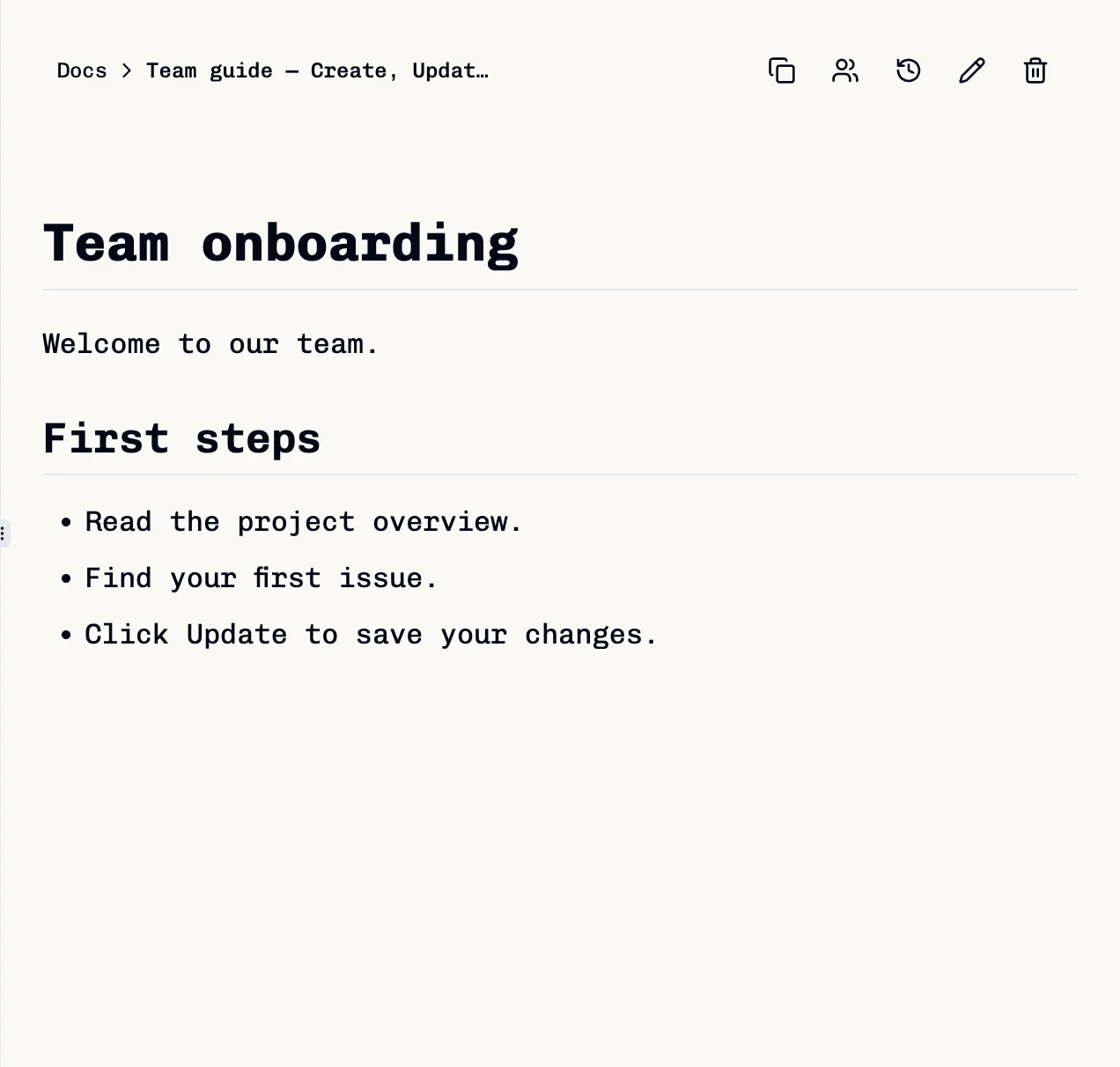
- Click the pencil button (Edit document) in the reader toolbar.
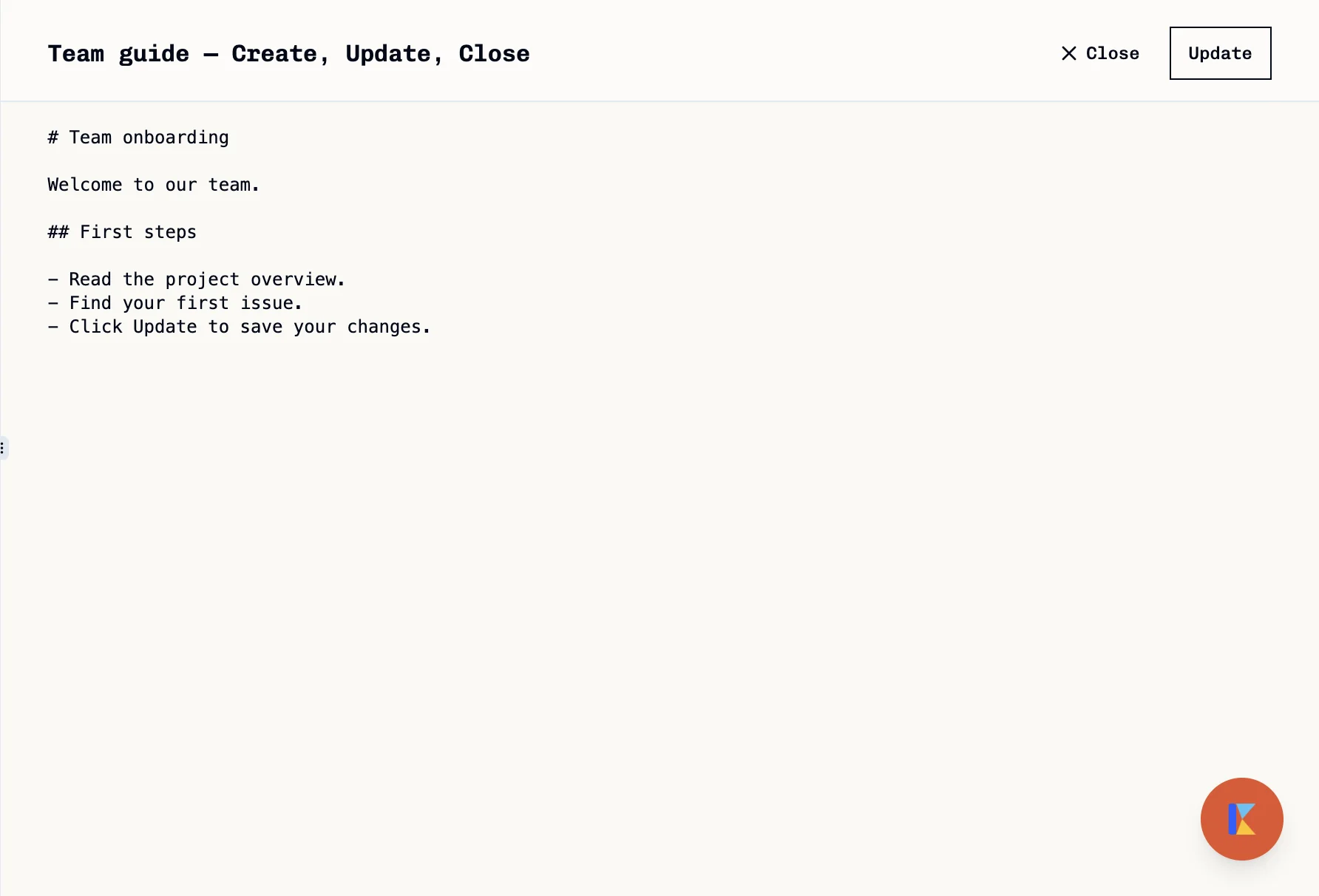
- Edit the title and Markdown content.
- Click Update to save.
The reader displays the saved content. Reload the page to confirm that the changes persist.
Update saves changes. Close exits the editor and discards changes made since the last save. The editor does not autosave; save before closing or reloading the page.
Share a document
- Open the document you want to share.
- Click Share in its reader toolbar.
- To add an existing team member, search using Add names or emails... and select the matching person. Selection grants access immediately and sends a notification; there is no separate Save button.
- Use the member's role dropdown to submit Can view, Can edit, or Admin. Use Remove access to revoke an explicit grant.
- Click Copy link to copy the current page URL.
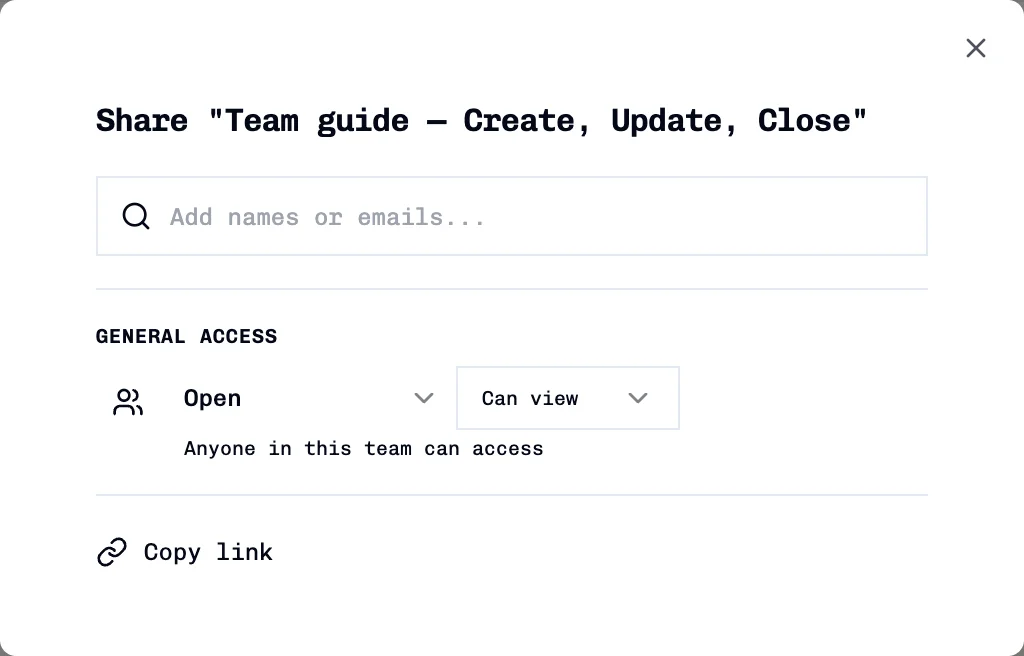
Open the intended document before copying the link: Copy link copies the current browser URL. Copying a link does not itself grant access.
Current sharing limitations
- Open is labelled as access for the team, not public internet access.
- The Open / Restricted control submits a visibility change, but reopening the dialog may display Open without loading the saved visibility.
- The Can view / Can edit dropdown under General access does not persist its selection.
- Member role controls are available, but complete enforcement of those roles and restricted access has not been verified. Do not rely on these controls to protect confidential documents.
The screenshots show the dialog without granting access to another person. Recipient access was not tested for this guide.
Archive a document
- Open the document.
- Hover over its entry in the document reader's sidebar and open More actions.
- Select Archive.
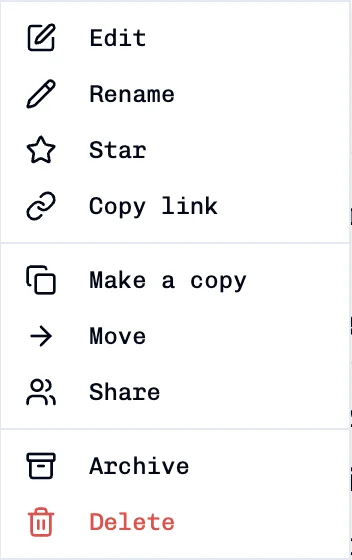
The document leaves the active list and appears in Trash. Archiving is reversible and does not use the permanent deletion confirmation.
Restore an archived document
- Select Trash in the Documents sidebar.
- Find the document and hover over its card.
- Click the circular-arrow Restore button.
- Return to All files and open the document's folder to find it again.
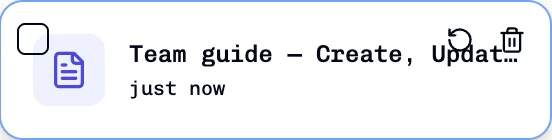
The restored document returns to the active list. Delete forever, beside Restore, is a different action.
Permanently delete a document
- Open the document and click Delete in the reader toolbar or More actions menu. For an archived document, use Delete forever in Trash.
- Check the title in the Delete Document confirmation.
- Click Cancel to keep it, or Delete to permanently remove it.
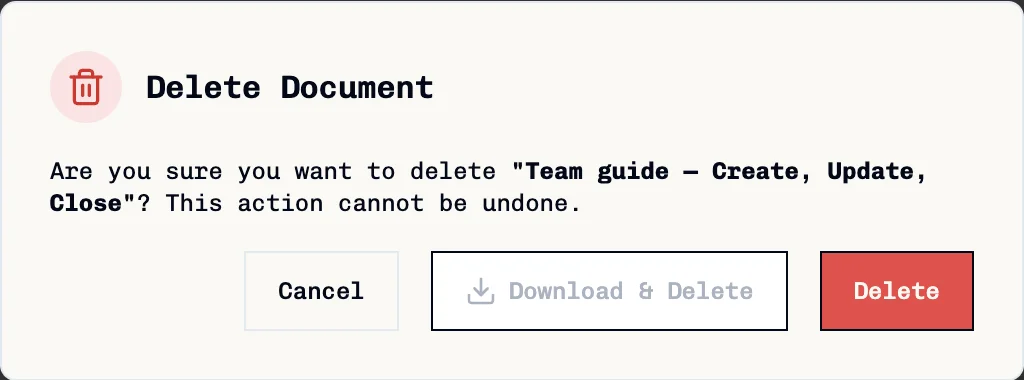
Deletion cannot be undone through Trash. If Download & Delete is available, it starts a download before deletion; it does not confirm that a backup reached your disk. Save and verify any required backup separately before deleting.
Only the confirmation was inspected for this guide; the sample document was not permanently deleted.
Troubleshooting
| Symptom | Action |
|---|---|
| Edits disappeared after closing | Reopen the editor, re-enter the content, and click Update. Close discards unsaved edits. |
| Newly created document is not open | Select All files, then its folder and title. |
| A document disappeared from the active list | Check Trash and use Restore if it was archived. |
| A copied link opens the wrong page | Open the intended document first, then copy its URL again. |
For folder creation and moving documents, see Organizing Documents with Folders.
For revision preview/restore and archived-document workflows, see Document History, Archive, and Restore. For smart views and the folder/document graph, see Document Views and Graph.