Document History, Archive, and Restore
Use version history to inspect or restore an earlier Markdown or text revision. Archive removes a document from active views while keeping it in Trash, where it can be restored.
Open version history
- Open a Markdown or text document from Documents.
- In the reader toolbar, select Version history (clock/arrow icon).
- Review revisions by number, timestamp, and author when available.
- Select Preview to expand a revision's saved text. Select Hide to close the preview.
The panel lists revisions for the open document. If it says No revisions yet, edit and save the document to create a revision. Version history is not available for binary formats such as PDF or DOCX, and the panel does not provide a side-by-side diff.
Restore a revision
- In Version history, choose Restore on the revision you need.
- Read the confirmation, which names the revision number.
- Confirm only if you want that revision's content to replace the current document.
- Verify the reader shows the restored content.
Restoring replaces the current content. Before doing so, iKanban saves the pre-restore state as a new revision, so it can be restored in turn. The revision history is refreshed after the operation.
Archive a document
- Open the document.
- In the document reader sidebar, hover over its entry and select More actions.
- Select Archive.
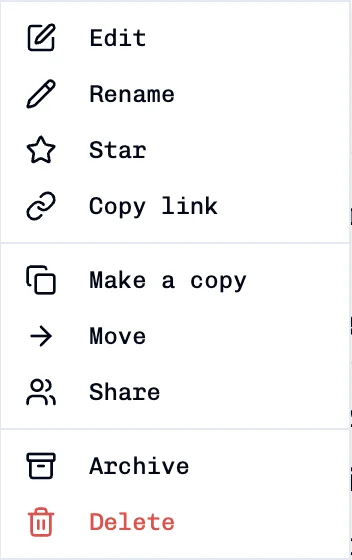
The document leaves active file views and appears in the Trash smart view. Archive is reversible; it is different from permanent deletion.
Restore an archived document
- In the Documents left rail, select Trash.
- Find the archived document.
- Select its Restore action.
- Return to All files and open the document or its folder.
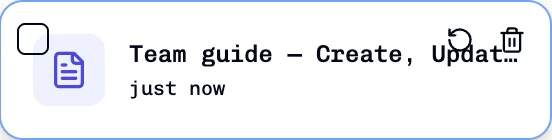
The document returns to the active list. In Trash, Delete forever permanently removes it; it does not restore it. See Creating and Managing Documents for permanent deletion details and confirmation behavior.
If a revision or document is missing
- Confirm the selected document is Markdown or text before looking for Version history.
- Check Trash if a document is absent from All files.
- A preview shows the saved revision text; it is not a diff against the current version.
- Do not use Delete forever when the intent is to archive or restore.