Coding agents
Coding agents take a task-specific instruction and work against a repository. This flow is separate from the in-app AI chat and from external clients connected through MCP.
Before assigning an agent
- Open the task and confirm it belongs to a project with the intended repository connected.
- Confirm the required GitHub connection and coding-agent integration are configured for that repository.
- For profile-based agents, confirm the executor profile and provider or CLI access are configured in Settings → Agents and Settings → AI Provider Keys, as applicable.
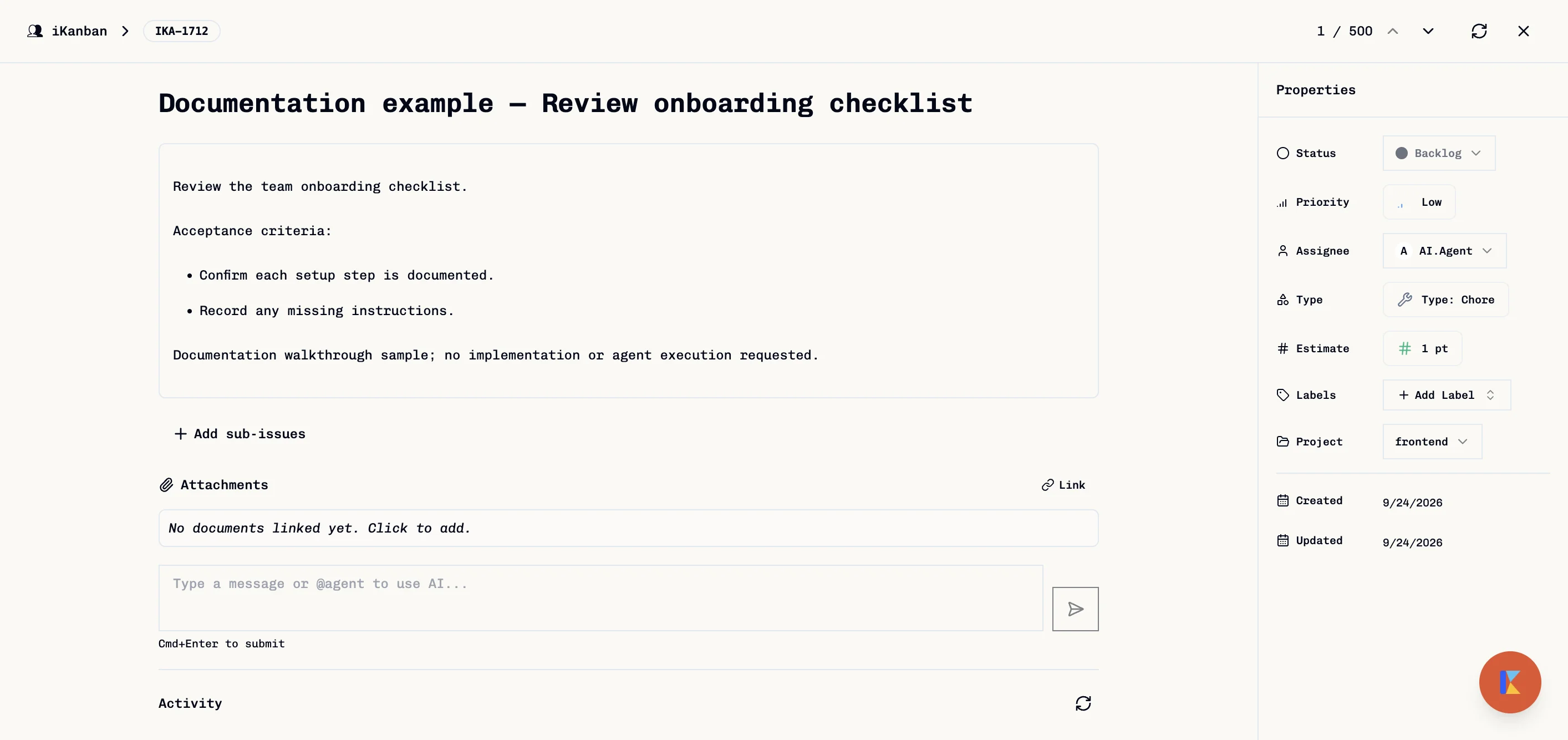
- Add a clear task description and acceptance criteria. The agent needs enough context to identify the files, expected behavior, and checks.
Assign from a task
- Open the task's comment/agent input.
- Type
@and choose an agent from the suggestion list. Available mentions depend on the configured integration and executor profiles.
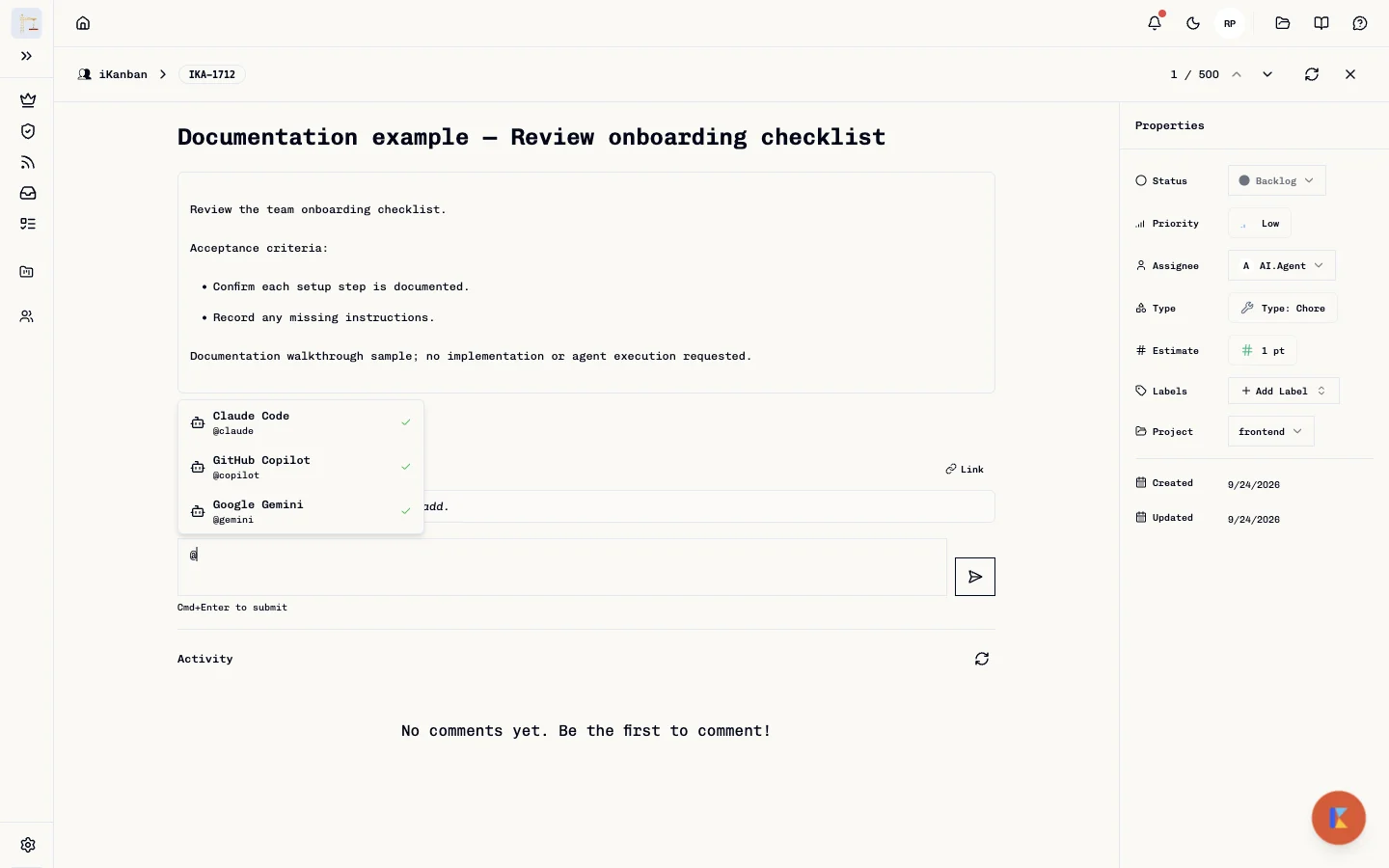
- Add the instruction after the mention. For example:
@claude Add server-side validation to the signup handler, return a clear 400 response for invalid email, and add a focused test. - Review the task and instruction, then submit the comment to start the requested work.
Submitting an agent mention is an action: iKanban saves the comment and dispatches the selected agent. GitHub-backed assignments can create or update GitHub work on the connected repository. Do not use a real mention just to preview the flow.
The built-in GitHub-backed mentions include Claude, Copilot, and Gemini. Their integration behavior differs by provider; follow the status and links shown on the task's Agent Activity card. Other mentions in the picker use configured executor profiles and can create an iKanban agent attempt for the task.
Follow the run
- Return to the task and open Agent Activity to check the queued/running state and linked GitHub work, when available.
- Open the linked pull request to inspect the branch, changes, and checks.
- Review the diff and CI results. Approve, request changes, or close the pull request according to your repository's review policy.
- Merge only after review. Do not treat an agent's completion message as approval or verification.
For the state transitions and attribution details, see Agent Lifecycle. For a hands-on GitHub task walkthrough, see Working with Coding Agents on GitHub.
Repository workflow files
Claude and Gemini GitHub Actions behavior depends on the workflow installed in the target repository; Copilot uses its GitHub integration. This guide does not provide copy-paste workflow YAML. Workflow permissions, action versions, event text, and secrets must be reviewed for the repository where the workflow will run.
Before enabling an agent workflow:
- Start from the provider's maintained documentation and validate the workflow in a test repository.
- Grant only the permissions the workflow needs; keep credentials in repository secrets and never put secret values in YAML or task text.
- Treat issue titles, descriptions, comments, and review text as untrusted input. Pass event content as data, not interpolated shell source.
- Review every agent-created change and workflow run before merging or granting additional access.
Troubleshooting
| Symptom | Check |
|---|---|
| Agent mention is not suggested | Check the configured executor profiles and integration availability. |
| Comment saved but no run appears | Check that the task's project has a repository connected and that the selected agent is configured. |
| GitHub-backed run is queued or has no pull request | Open the task's Agent Activity links and check the corresponding GitHub issue, pull request, and workflow run. |
| A run failed | Read the provider or workflow logs, fix the underlying configuration or task instructions, then retry deliberately. |
For provider selection in the conversation panel, see In-app AI chat. For tool access from Claude Code, Cursor, or another MCP client, see MCP Usage.