Task Views and Filters
The team Issues page, team Views page, and individual project tabs provide different controls. Start on the screen that matches the work you want to inspect.
Open the team Issues page
- Expand your team in the sidebar.
- Select Issues.
- Choose a view button above the issue results.

| Button | Selection |
|---|---|
| All issues | No status preset; other selected filters still apply. |
| Active | In Progress and In Review issues. |
| Backlog | Issues in the todo state, also labelled To Do on some boards. |
| Stale | Open issues idle beyond the selected threshold. Choose 7, 14, or 30 days; the initial threshold is 14. |
Switch between Board and List
- Click Display on the Issues toolbar.
- Choose Board or List.
- Click an issue card or row to open its details.
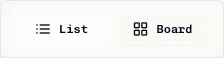
The Issues layout choice is stored in this browser. Switching layout changes presentation, not issue status. Timeline is available on the separate team Views page.
Refine the results
- Click Refine.
- Select the relevant priority, task type, assignee, project, or label controls.
- Inspect the resulting issues and remove selections you no longer need.
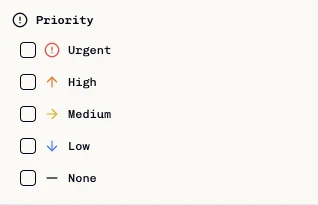
Different filter categories narrow the result together. Multiple priority or task-type choices allow matching values within that category. Label matching supports all selected labels by default, with an any-match option. The filter also has controls for unassigned issues and sub-issue presence.
Changing All issues / Active / Backlog / Stale does not clear the other filters. If the result is unexpectedly empty, inspect Refine as well as the selected view.
Sort the results
- Open the Sort selector, initially labelled Newest.
- Choose Newest, Oldest, Priority, Recently updated, or Due soon.
- Check the displayed result order.
The toolbar sort applies to List. Board columns retain ascending issue-number order within each status; changing this selector does not reorder cards by the selected field.
Use natural-language filters
- Enter a query in Filter issues in plain English.
- Click Apply.
- Review the resulting filter selections and issues; adjust through Refine where needed.
See Natural-Language Search for supported queries and provider behavior. This input interprets issue filters; it is not the global documentation search box.
Open team Views and Timeline
- Select Views under the team in the sidebar.
- Open Display.
- Choose List, Board, or Timeline.
- Use Filter on this screen to narrow the issues.
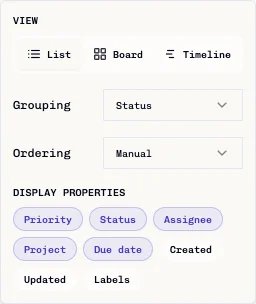
List and Board expose grouping, ordering, and visible-property controls. Timeline hides those controls and displays date-based task bars. On narrow screens, the timeline can require horizontal scrolling.
Use Save View to retain a named configuration in this browser. See Saved Views for its storage limitations and steps.
Open project-specific views
- Select Team → Projects.
- Open the project.
- Select Dashboard, List, Calendar, or Automations.
The project List supports sortable column headings; Calendar shows issues with due dates. These screens are distinct from the team Issues and Views pages. See Managing Projects.
Troubleshooting
| Symptom | Check |
|---|---|
| An expected issue is absent | Team, project, status preset, Refine selections, and whether the loaded result is complete. |
| All issues still looks filtered | Clear remaining Refine selections; All issues only removes the status preset. |
| Timeline is unavailable in Display | Open the team's Views page; Issues Display only offers Board/List. |
| A project lacks Sprints or Insights tabs | Open Sprints or Insights from the team sidebar. |
| A saved view is missing on another device | Saved custom views use browser-local storage, not account synchronization. |