Saved Views
Save a named configuration from your team's Views page. It remembers the layout, grouping, ordering, visible properties, and filters.
Open the correct screen
- Expand your team in the sidebar.
- Select Views.
- Use Filter (the add-filter icon) and Display in its toolbar.
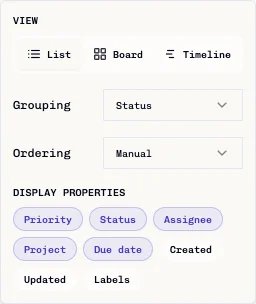
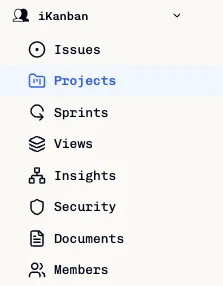
The current entry point is Team → Views. An individual project does not have the Timeline tab described in older instructions.
Save a configuration
- Choose List, Board, or Timeline from Display.
- Set the available grouping, ordering, and visible-property controls, then apply the required filters.
- Click Save View.
- Enter a name in View name....
- Click Save.
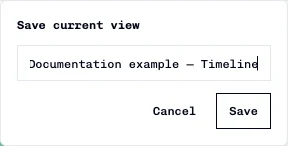

A named tab appears next to Issues and Projects. Saving creates a new configuration; it does not update an existing saved tab in place.
Apply a saved view
- Open the team's Views page.
- Click the saved view's named tab.
- Check its applied layout and filters.
If you change the configuration afterward, an amber indicator marks unsaved changes. Click the saved tab again to reapply its stored configuration, or save a new view with a different name.
Remove a saved view
- Hover over the saved tab.
- Click its Delete cross.
This removes the saved configuration from the browser, not its issues. The current tab strip does not provide Rename or Set as Default controls.
Storage and scope
Saved custom views are stored in this browser's local storage. They do not automatically synchronize to another browser or device, and clearing site data can remove them.
The current storage key is not scoped per account, team, or project. Do not treat saved-view visibility as private account data. If you open a saved configuration under another team, its stored project/member/label filters may not apply there. Recheck the selected team and filters.
Selecting the built-in Issues tab is not a general clear-filters operation. Remove unwanted filters explicitly.
For the difference between team Issues, team Views, and project tabs, see Task Views and Filters.