Prove Your Domain and Connect
In iKanban, open Admin → Company sign-in. The page has two cards: Connection and Domains.
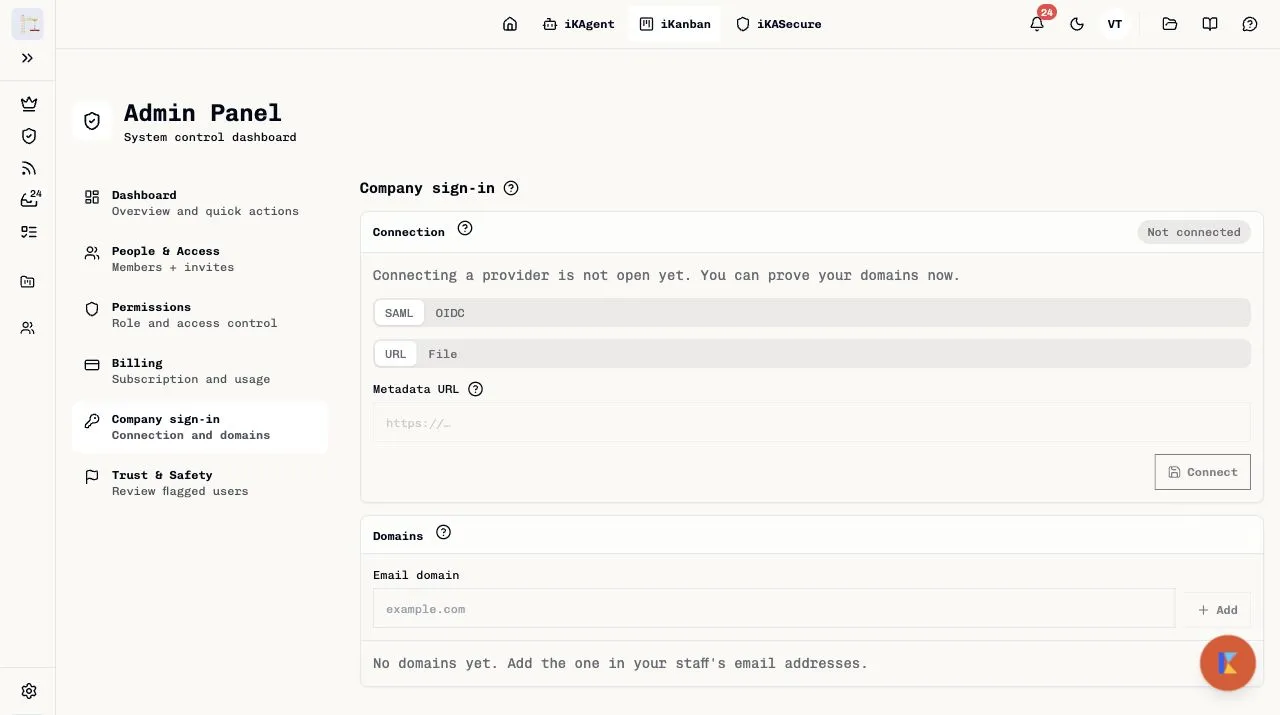
1. Add your email domain
In Domains, type the domain of your staff's email addresses, such as example.com, and select Add. iKanban shows a TXT record: a Name and a Value, each with a copy button. The domain shows Waiting for DNS.
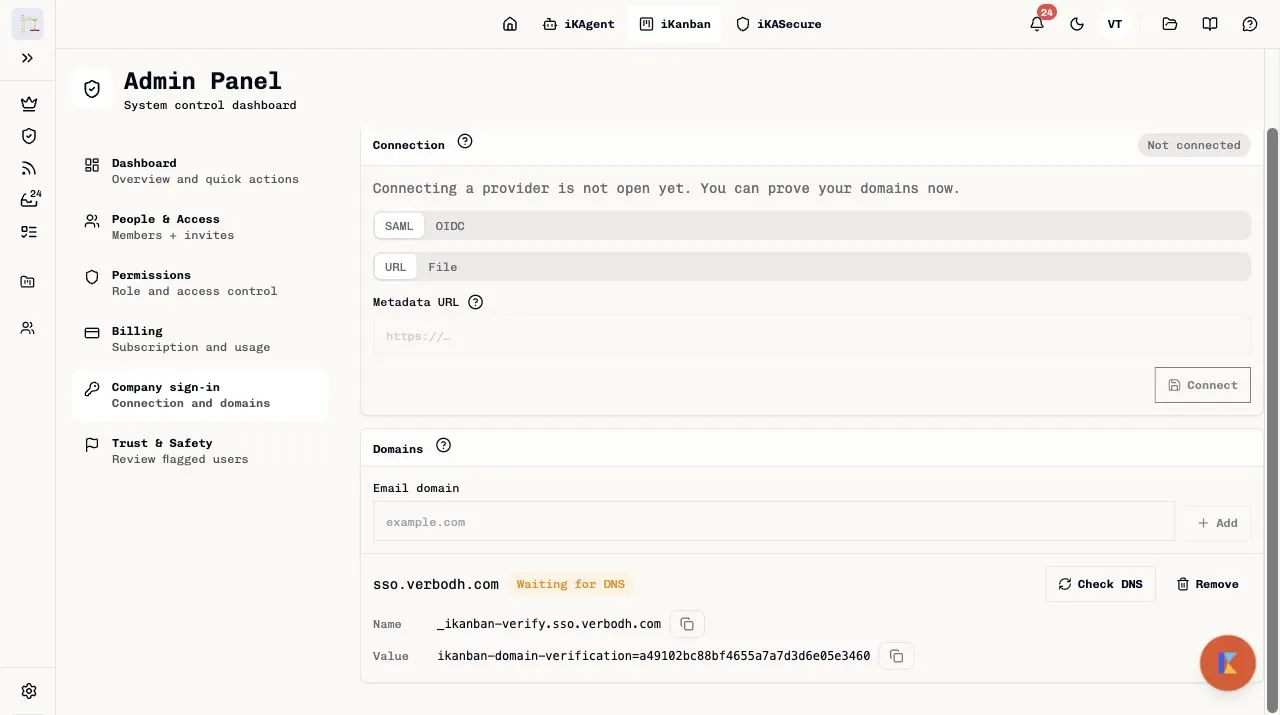
2. Create the TXT record
At your DNS host, create a TXT record with that Name and Value. A new record can take some time to appear.
3. Check DNS
Select Check DNS. When iKanban finds the record, the domain shows Proved. Only one workspace can prove a domain.
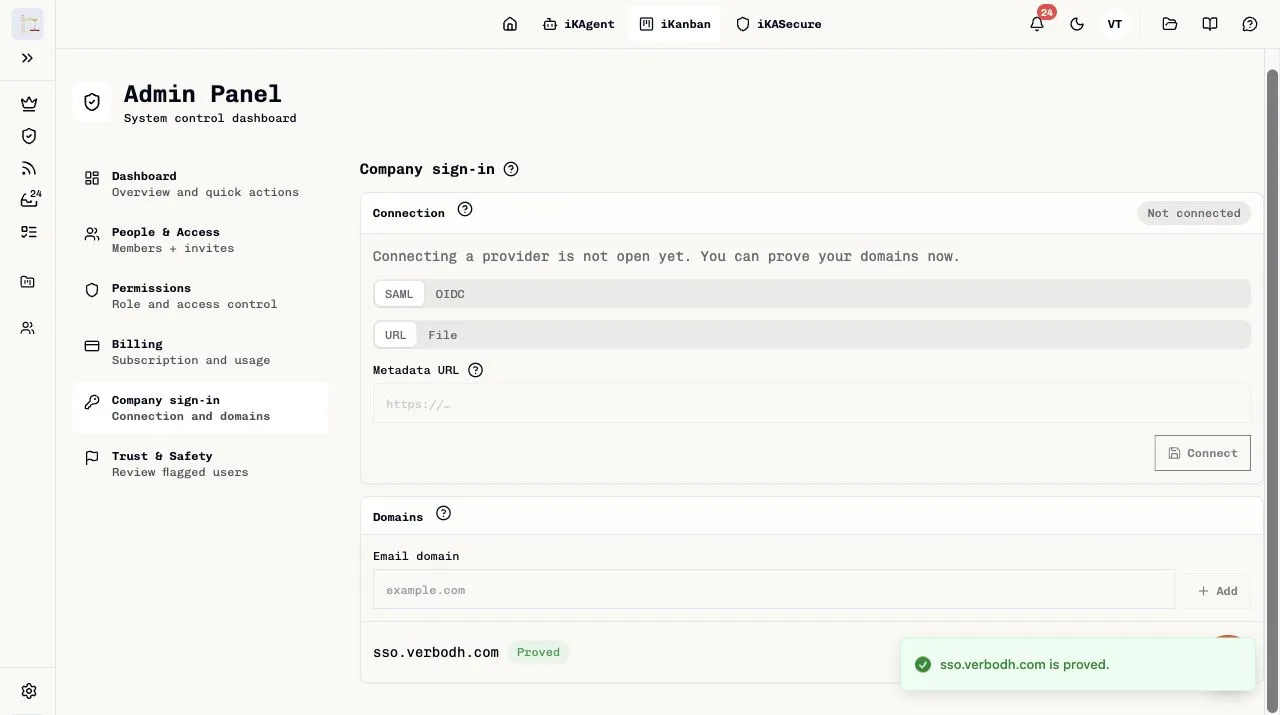
iKanban checks the record once a day. If the check fails, the domain shows Check failing: restore the record. After seven days of failed checks, the proof lapses and any workspace can prove the domain.
4. Connect your provider
In Connection, choose the protocol.
- OIDC: enter the Issuer, the Client id and the Client secret from your provider, then select Connect.
- SAML: enter your provider's Metadata URL, or choose File and upload the metadata XML (up to 128 KB), then select Connect.
iKanban accepts only public https addresses. It sends the client secret only to its identity service and does not store it, so a later change needs the secret again.
The Connection card then shows Saved · not live. Nobody can sign in through it yet.
5. Go live
On the Sign-in card, select Go live. The card shows Live, with Take offline and Update domains. From now on, the sign-in page offers Sign in with your company, and emails on your proved domains go to your provider.
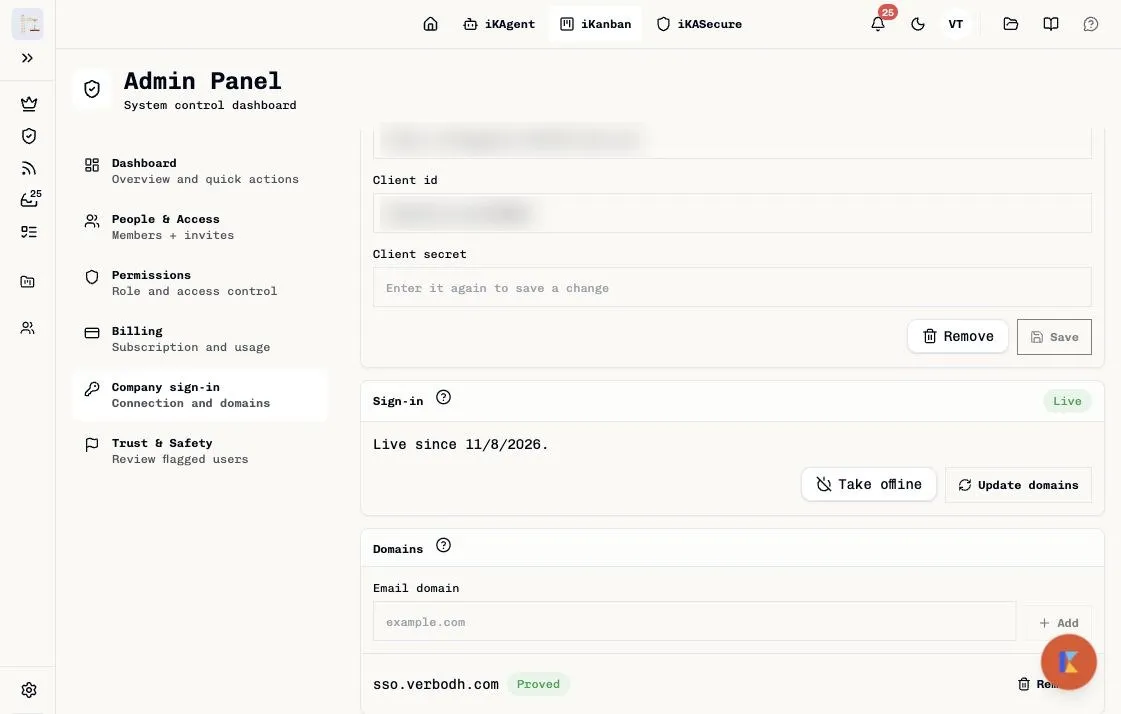
To stop company sign-in, select Take offline. Staff then sign in with Google, GitHub or email as before. After you prove another domain while live, select Update domains so it routes to your provider too.
6. Test the sign-in
- Sign out of iKanban, or use a private browser window.
- On the sign-in page, choose company sign-in and enter the test user's email.
- Sign in at your provider. iKanban opens the workspace. The first time, the person joins your workspace as a Member; give them team access in Admin → People & Access.
When something goes wrong
| What you see | What to do |
|---|---|
| The email goes back to the normal sign-in page | No workspace has proved that email domain. Check the domain row shows Proved. |
| Your provider says the redirect URI is wrong | Set the redirect URI or ACS URL exactly as on the overview page. |
| iKanban refuses the user after the provider sign-in | The provider did not send email_verified as true. Add it to the token or the assertion. |
| Proof lapsed on a domain | Restore the TXT record and select Check DNS. |
Replacing a connection
To move from OIDC to SAML, or to a new app in your provider:
- On the Sign-in card, select Take offline.
- On the Connection card, select Remove. Your proved domains stay.
- Connect the new provider, then select Go live.
People whose account only ever signed in through your workspace's company sign-in keep their account: the new connection takes it up at their next sign-in. A person who also has a password, Google or GitHub sign-in confirms once with that sign-in, as on their first company sign-in.